
Valorant Crosshair Keeps Changing Between Devices? Here Is the Real Fix
Valorant crosshair settings keep changing when you switch between desktop and laptop? Here is why it happens and how to sync crosshairs, codes, and config files for good.
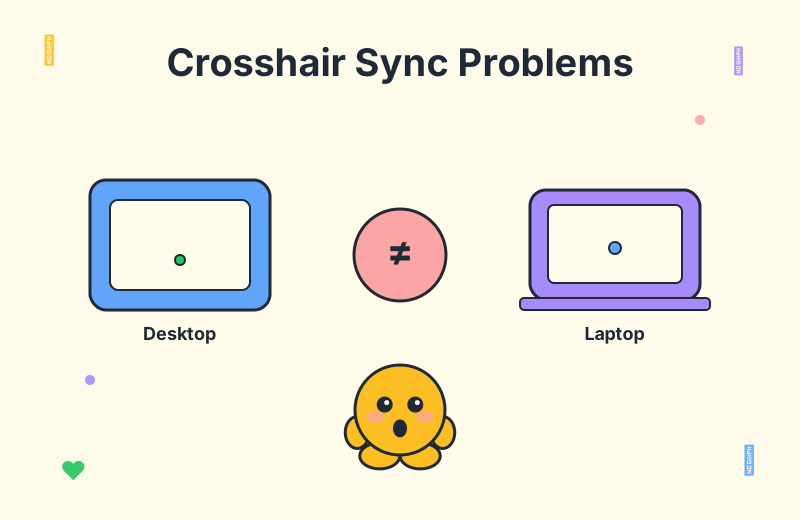
According to a recent r/ValorantTechSupport thread, this is one of the most common complaints from players who split their playtime across two machines. The original poster describes the exact scenario above: every time they switch from their main desktop to a travel laptop, the crosshair and a handful of other settings reset or shift on their own, even though they are logging into the same Riot account.
The good news is that this is a known and fixable problem. The bad news is that Riot's cloud sync is not as complete as most players assume, so a true valorant settings sync requires a bit of manual work. This guide breaks down exactly why your crosshair keeps changing between devices and walks through every reliable fix, from the 10-second share code method to a full config file transfer.
Why Valorant Crosshair Settings Don't Always Sync
The first thing to understand is that Valorant does not store every setting in the cloud. Riot's account-level sync handles some things very well — mouse sensitivity, key binds, and your agent unlock state tend to follow you across PCs — but it is far from a complete picture. Crosshair profiles, display settings, and a number of gameplay preferences are written to a local file on each machine, which means logging into the same account on a different PC does not guarantee the same in-game experience.
Players on Reddit report the same pattern over and over. One user explains the mechanic plainly: "some settings are stored locally on the machine, not in the cloud." That single line explains almost every "my crosshair changed itself" post in the thread. If you grab a small dot crosshair from a professional crosshair database on your desktop, that profile is saved to your desktop — not to Riot's servers.
There is also a genuine disagreement in the community about how much you should trust the cloud. Some players insist that settings travel with the Riot account automatically and that no manual work is needed. In practice, the cross-device players in the thread almost universally disagree: sensitivity might follow you, but the crosshair itself frequently does not. Treat cloud sync as a partial convenience, not a guarantee, and you will stop being surprised when the dot you love is missing on the laptop.
Display Settings Are the Hidden Culprit
Even when your crosshair profile does carry over, it can still look wrong on the second machine. The reason is that crosshair length, thickness, and gap are measured in pixels, not in a resolution-independent unit. A 2-pixel crosshair gap looks tight on a 1920x1080 screen and noticeably looser on a 4K panel running the same logical settings. Change the resolution and you change the visual size of the crosshair, even though the underlying numbers are identical.
This is why display-related settings matter so much for crosshair consistency. Resolution, aspect ratio (4:3 stretched versus 16:9), and window mode (fullscreen, windowed fullscreen, windowed) are all stored locally on each machine, and they all feed into how the crosshair renders. The OP in the Reddit thread specifically noticed that the crosshair looked different after switching screens, and the community's response was direct: align your resolution and aspect ratio on both PCs if you want the crosshair to feel the same.
If you want a quick diagnostic, do this before tweaking the crosshair itself: open Settings > Video on both machines and confirm that the resolution, aspect ratio, and display mode match. You will be surprised how often the laptop defaulted to a different refresh rate or a windowed mode the desktop was not using. Once those are aligned, you are comparing apples to apples, and any remaining crosshair drift is much easier to explain and fix.
The Reliable Fix: Export and Import a Crosshair Code
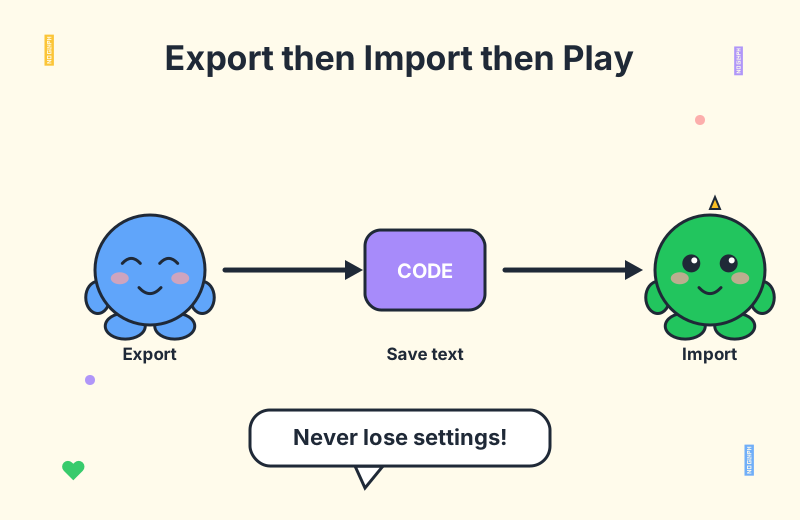
The most practical solution, and the one players in the thread keep coming back to, is to use Valorant's built-in crosshair share code system. Every crosshair profile can be exported as a short alphanumeric string that you can paste into any other machine. It is fast, it is reliable, and it does not depend on cloud sync at all.
Here is the exact workflow:
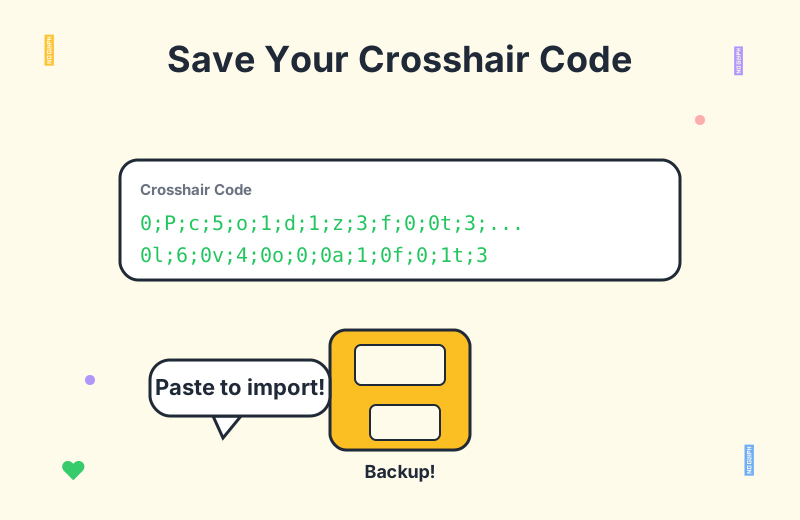
0;s;1;P;c;5;h;0;f;0;0t;1;0l;2;0o;0;0a;1;0f;0;1b;0 (yours will differ).That is the entire process, and it takes about ten seconds per machine. The beauty of this approach is that the code carries the full crosshair definition — color, length, thickness, gap, outline, center dot, movement error, firing error, everything — so what you see on the desktop is exactly what you get on the laptop. For inspiration or a quick starting point, you can also pull codes from a crosshair generator, export them once, and reuse the same code on every PC you own.
Make this a habit: any time you tune your crosshair, re-export the code and update your saved copy. Treat it the same way you would treat a save file. The day your desktop dies or you wipe Windows, you will be grateful for those fifteen characters sitting in your notes app.
Going Deeper: Manually Transferring RiotUserSettings.ini
For players who want full settings parity — not just the crosshair, but every display, mouse, and gameplay preference — the share code is not enough. You need to move the underlying config file. This is the advanced method, and it is the closest thing Valorant has to a true valorant config file migration.
The file in question is RiotUserSettings.ini, and it lives in your Windows AppData folder. The path looks like this:
`text
C:\Users\`
AppData is a hidden folder by default, so you will need to enable hidden items in File Explorer (View > Show > Hidden items) to see it. The folder with the long account ID is unique to your Riot account, but if you only have one Valorant account installed there will only be one such folder to worry about.
To transfer your settings from one PC to another:
RiotUserSettings.ini to a USB stick or a cloud folder.RiotUserSettings.ini.This method is powerful, but it comes with caveats. Because the file is tied to a specific account ID folder, you cannot just drop it into a random location — it has to land in the matching folder on the target machine. Also, any machine-specific settings (refresh rate, in particular) will carry over, so if the target monitor cannot match the source's refresh rate you may need to adjust that one value manually after the copy.
When Settings Keep Resetting Every Switch
A particularly frustrating variant of this problem is when settings do not just look different on the second PC — they actively reset every time you switch. Several users in the Reddit thread report that no matter what they do, Valorant reverts their changes on the next login. If you are stuck in that loop, two fixes come up repeatedly.
The first is to delete a Vanguard-related file called vgkbootstatus.dat in C:\Windows\ and then restart the PC. This file can get into a bad state that interferes with how Riot's services read your profile, and removing it forces a clean rebuild on the next boot. It sounds weird, but it is a standard fix for a class of "settings will not stick" issues.
The second fix targets Valorant's per-agent profile system. In Settings > Controls, each agent can have its own key bind profile, and a corrupted profile can cause the game to fall back to defaults or fail to save new changes. The recommended approach is to delete all agent profiles in that menu, hit Reset to Game Default, and then reconfigure your binds and crosshair from scratch. It is tedious, but it eliminates the corrupted state and gives you a clean baseline.
Finally, as mentioned earlier, keep resolution and aspect ratio identical on both machines. A surprising number of "settings keep resetting" reports are actually the game trying to apply a locally valid config to a different display setup, which can silently override parts of your profile. Lock down the display settings first, then deal with the crosshair.
Frequently Asked Questions
Does Valorant sync crosshair settings across PCs?
Only partially. Sensitivity and key binds often sync through your Riot account, but crosshair profiles and display settings are stored locally on each machine and frequently do not carry over reliably. This is why the same account can show different crosshairs on a desktop and a laptop.
How do I keep the same crosshair on my desktop and laptop?
Export the crosshair as a share code in Settings > Crosshair, save it in a text file or your phone, and import it on the other machine. This is the most reliable method and takes seconds. Re-export any time you tweak the crosshair so your saved code always reflects your current setup.
Where is the Valorant settings file located?
Settings are stored in RiotUserSettings.ini under AppData\Local\VALORANT\Saved\Config\. You can copy this file to another PC at the same path to manually transfer full settings. Make sure Valorant is closed on both machines before copying, and be aware that monitor-specific values like refresh rate will travel with the file.
Why does my crosshair look different on a new monitor?
Crosshair length, thickness, and gap are measured in pixels, so a different resolution changes how large the crosshair appears relative to your screen. A dot that feels perfect at 1920x1080 may look tiny or stretched at 2560x1440 or in a 4:3 stretched aspect ratio. Match resolution and aspect ratio between machines for the most consistent feel.
My settings keep resetting every time I switch PCs. What now?
Try deleting vgkbootstatus.dat in C:\Windows\ and restarting, or delete all agent profiles in Controls, reset to default, then reconfigure. Keeping resolution and aspect ratio identical on both machines also helps. If the resets started after a Vanguard update, the boot status file is the most likely culprit.
Conclusion
Cross-device crosshair drift is not a bug in your hardware or a sign that Valorant hates you — it is the natural consequence of a settings system that mixes cloud sync with local storage. Once you accept that the crosshair profile lives on the machine, not the account, every fix in this guide stops feeling like a workaround and starts feeling like a workflow.
The share code method is the one most players will use day to day: export once, save the string, import on every other PC. The RiotUserSettings.ini transfer is your heavy hammer for full parity. And when settings refuse to stick, the vgkbootstatus.dat delete and the agent-profile reset are the two escape hatches that the community keeps returning to. Pair any of these with matching resolution and aspect ratio on both machines, and the crosshair you tuned on your desktop will finally show up on your laptop too.
Want a crosshair worth syncing? Browse the professional crosshair database for pro codes, mess around with fun crosshairs for a change of pace, or dig into more guides on the Valorant blog for everything from sensitivity tuning to warm-up routines.